Canva Templates: The System That Gives You Your Mornings Back
 Lyric Kinard
Knowing what each image should do is step one. Build a Canva template system that turns course graphics from an all-morning project into ten minutes.
Before You Start
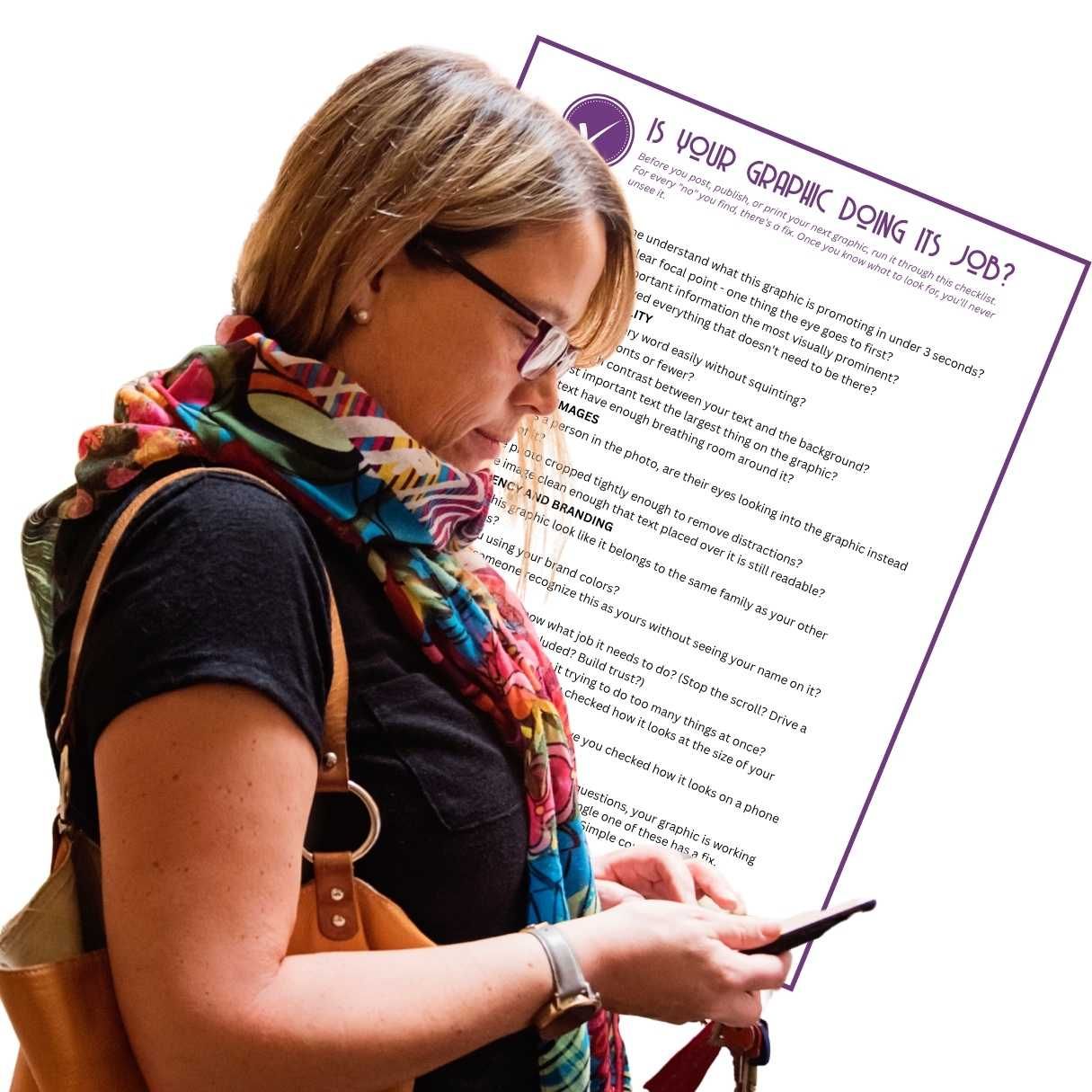
Want a running start? Grab our quick "ask yourself these questions about your images" checklist. It walks you through the job of every image type in your business.
If you've ever lost an entire morning to Canva, the fix isn't more willpower — it's a system. A few weeks ago we talked about the one question that should come before any design decision: what is the single job this image needs to do? That question is the mindset shift. Canva templates are how you actually act on it, so course graphics, YouTube thumbnails, and social media posts stop eating the hours you meant to spend making your art.
Because here's what I notice, even with people who fully understand the framework. They ask the right question. They figure out the job. And then they open a blank Canva file and start from scratch anyway — choosing fonts, nudging colors, rebuilding the same layout they built last month. The understanding was never the problem. The missing piece is the system underneath it.
Let's build that today.
A Quick Reminder Before We Build
Just so we're on the same page: every image in your business has one job, and that job changes depending on where the image lives. A stop-the-scroll image only has to make someone pause. A bridge image moves them from curious to interested. A teaching image, deep inside your course, gives the real detail and tells the whole story.
If that hierarchy is new to you, start with that article first — it's the foundation everything below sits on. For today, we're assuming you already know the job. We're here to make the creating fast.
A Template Is a Decision You Only Make Once
Think about what actually drains you when you make graphics. It usually isn't the creativity. We're makers — playing with color and type can be genuinely fun. What drains you is making the same decisions over and over: where does the title go, what font do we use, what are the brand colors, how big is the photo, what size does this need to be.
A template answers all of those questions once.
After that, you're not designing anymore — you're filling in. A YouTube thumbnail template means you swap a title and a photo instead of rebuilding the whole layout. A course template means your entire library looks cohesive without you having to think about it. A social media template means you never again stare at a blank canvas wondering where to begin.
That's the difference between a design habit and a design system. One quietly drains your week. The other protects your creative energy for the work that only you can do.
Build One File That Holds Every Size
Here's how this looks in my own studio, because I want you to see that it's not complicated.

When I'm creating a new course, I open one Canva file that already contains every image size that course will ever need — the course card, video thumbnails, advertisements, the headers for instructional videos, end cards, the logo, all of it. I didn't build that from nothing. I made it by copying and pasting the file from the last course and swapping the artwork.
Then it really is just dropping new imagery into existing slots and reformatting. Canva even does some genuinely magic things to help you resize as you go. (I'll confess something here: I'm a complete Canva fan. I haven't opened my Adobe Suite in years — I finally let the subscription go, because I do everything, including handouts and PDFs, right inside Canva.)
The point isn't my file. The point is that one well-built file replaces a hundred from-scratch starts.
Design Once, Reformat Everywhere
Most of us already know our formats in advance, even if we've never written them down. If you're filming a YouTube tutorial that leads to a lead magnet that leads to a course landing page, and you'll promote all of it on social — you already know you need a thumbnail, a Pinterest pin, a square post, a story, a landing-page header.
So make them in one sitting, from one piece of source material.
Take a single image and pull it into a landscape version, a tall version, and a square version in the same session, with the same creative energy, while you're already in the flow. When you know where each image is going to land, reformatting one image into three is genuinely quick — especially once your templates exist. You're working with the system instead of reinventing the layout every single time.
Especially If You're Short on Time
If you're a shop owner or you're running a business on top of everything else, my heart goes out to you, because you don't have time for anything — and you certainly don't have an extra two hours to disappear into Canva every time you need one new graphic.
This is exactly where a system rescues you. Imagine opening Canva already knowing what to make and why, and being done in twenty or thirty minutes.
I'll be honest with you — I still don't always finish in twenty minutes. I get caught tweaking the small things; maybe it takes me forty. But forty minutes with a system beats the several hours it used to take me before I had one. That's the whole promise here. Not perfection. Just your time, mostly back in your hands.
Start With Just One Template This Week
You don't have to build all of this at once. In fact, please don't — that's its own rabbit hole.
Pick the one image type you make most often. For most of us that's a social media post or a YouTube thumbnail. Build a single reusable template for it. Nail the layout, the font, the color, the size. Save it. And the next time you need that image, open the template instead of starting over.
That's it. That's the beginning of a system. One template this week, and you'll feel the difference the very next time you need that graphic.
Want the Whole System? Canva Made Simple Is Open
At the Academy for Virtual Teaching, this is exactly what we build inside Canva Made Simple — and registration is open now.
It isn't another pile of "how to use Canva" tutorials (those live free all over YouTube, and many are excellent). The heart of this course is the system: templates for every image type in your teaching business, a workflow that batches your image creation so you're not context-switching all month, charts that map image types to purposes, and a clear understanding of what each image needs to accomplish wherever it lands. Plus, yes, plenty of short, specific Canva tutorials for the moments you get stuck.
Canva Made Simple is opening to a limited group of founding members at an introductory price. Founding-member pricing closes when the course opens to everyone, so if you've been following along this month thinking I need to actually build this for my business — this is the week to save yourself the work.
Join Canva Made Simple as a founding member → https://www.academyforvirtualteaching.com/courses/canva-made-simple
Before You Go
And if you're not a member yet, come join our free Academy for Virtual Teaching membership, where we have a discussion feed, guest seminars, and open Zoom roundtables. We get together, share our wins, and brainstorm solutions to whatever we're stuck on — a warm community of artists, crafters, and creators who are teaching and running businesses, just like you, and making the world a better place along the way.
So, my friend, never stop creating.
Categories: : Podcast